

A QR code on a business card solves the oldest problem in networking: the card that goes in a pocket and never gets typed into a phone. Scanned, it saves your details or opens your digital card in one tap. The only real decision is which kind of code — a vCard that encodes your contact directly, or a dynamic link you can edit later. This covers both, five layouts that actually survive an exchange, and the size rules nobody prints on the template.
vCard or dynamic: pick your trade-off
There are two honest options, and they trade permanence against flexibility.
vCard QR code — scan to save, forever
A vCard code encodes your name, phone, email, and company into the squares themselves. Scanning it offers to save the contact — no internet needed, no hosting, nothing to keep alive. It works ten years from now exactly as it does today. The catch: it can never be changed. New number or new job title means new cards. Build one with the vCard QR code generator.
Dynamic QR code — an editable digital card
A dynamiccode points at an online card you control. Change your title, add a new number, drop in a portfolio link — the printed code stays the same and the card behind it updates. It also counts scans. The trade-off is that it depends on that link staying live, and most tools charge for dynamic codes. Capy QR doesn't: dynamic codes and scan analytics are on the free plan.
Rule of thumb: vCard if your details rarely change and you want zero dependencies; dynamic if you switch roles, run a personal brand, or want to know how often the card gets used. Undecided? Default to dynamic — keeping the option to fix a typo or a changed number later is worth more than most people expect.
Build yours in the editor → free QR code generator
5 layouts that work
- Back-of-card, centered.The classic. Front stays clean and typographic; the whole back is the code with a short "Scan to save my contact" label. Maximum scan size, zero clutter.
- Corner accent. A modest code in one back corner, balanced against your logo in the opposite one. Keeps the card feeling like a card, not a coupon.
- Beside the details. Code next to your printed name and number, so people who prefer to read still can, and people who prefer to scan just do. Belt and suspenders.
- Full-back "scan me." For events: an oversized code and one line of instruction, designed to be scanned across a table without anyone squinting.
- Branded frame.Code in your brand color with a small monogram in the center, matched to the card's palette so it reads as design rather than an afterthought.
The size and placement rules nobody tells you
- Minimum 2 cm (0.8 in) square. Cards are read up close, so this is comfortable — but smaller than this and older phones start to struggle.
- Leave the quiet zone.Keep a clear margin of empty space around the code. Crowding it against text or the card's edge is the single most common scan failure.
- Contrast over cleverness. Dark code on a light background scans best. A brand-colored code is fine; a pale-on-pale or reversed light-on-dark one is a gamble.
- Mind the finish. Heavy gloss or textured stock can throw glare that confuses a camera. Matte is the safe bet for a code.
- Export vector, then test. Use SVG so the code stays crisp on a real press at small size (or a PNG of at least 300 px for a 2.5 cm code), and scan the proof with two phones before ordering 500.
Capy QR's editor lets you brand the code — color, dot style, a center monogram — while keeping it scannable, then export print-ready files free and with no watermark. The free-generator guide has the full scannability checklist if you want it.
How to create a QR code for a business card
- Open the vCard QR code generator for scan-to-save contact details, or the URL generator to link a digital card, LinkedIn or portfolio.
- Enter your details, then match the code to your card: color, dot style, a logo.
- Download as SVGand place it on the card in your design tool (Canva, Illustrator, Vistaprint's editor) at 2 cm or larger.
- Print one proof and scan it with two different phones before the full order.
How to add a QR code to a business card in Canva or Vistaprint
Most people build a business card with a QR code in an online editor, not a desktop app. The steps are nearly identical in Canva and Vistaprint, because the code is just an image you place on the card.
Canva
- Make your code in Capy QR (vCard or URL) and style it with your colors or logo.
- Download it as SVG (a vector format, like PDF, so it stays sharp at any size) or as a high-resolution PNG.
- In Canva, open Uploads, upload the file, then drag it onto the back of your card.
- Resize from a corner handle so it never stretches, and keep it at least 2 cm square with a blank margin around it.
Canva has its own QR app, but it only makes plain codes; building the code in Capy QR adds colors, a logo (sized automatically) and vCard. Full walkthrough: make a QR code in Canva. Remember that a vCard code is static, so check every digit before it goes to print.
Vistaprint and other online printers
You have two routes: upload your own finished design with the code already placed in it, or use the printer's QR field and paste your link. Either way, ask for the print proof, inspect it, and scan it with two phones before you order a run of QR code business cards.
Business card size in pixels
Designing the card itself in Photoshop, Canva or another tool? Set the canvas to these pixel dimensions so it prints sharp — 300 DPI is the print standard, 600 DPI is extra-crisp:
| Business card | 300 DPI (standard print) | 600 DPI (sharpest) |
|---|---|---|
| US standard — 3.5 × 2 in | 1050 × 600 px | 2100 × 1200 px |
| US with 0.125 in bleed — 3.75 × 2.25 in | 1125 × 675 px | 2250 × 1350 px |
| EU standard — 85 × 55 mm | 1004 × 650 px | 2008 × 1299 px |
| EU with 3 mm bleed — 91 × 61 mm | 1075 × 720 px | 2150 × 1441 px |
Design inside the trim size, and keep text and the QR code at least 3 mm (0.125 in) from the edge. More on print sizes in QR code size for print.
QR code or NFC business card?
NFC cards let people tap instead of scan, but they cost far more per card and only work on phones with NFC switched on. A printed QR code works on any phone — and it's the perfect backup on an NFC card. Full comparison: NFC vs QR code business cards.
Where Capy QR stops
Straight about the limits: for a vCard code, Capy QR encodes the contact details you enter — that's fully self-contained. For a dynamic card, Capy QR makes the code and the redirect, but the digital card page it opens is yours to host (a personal site, a LinkedIn URL, or a digital-business-card service). The QR carries the link; you own the destination.
Business card QR code examples
Three ways people put a QR code on a business card:
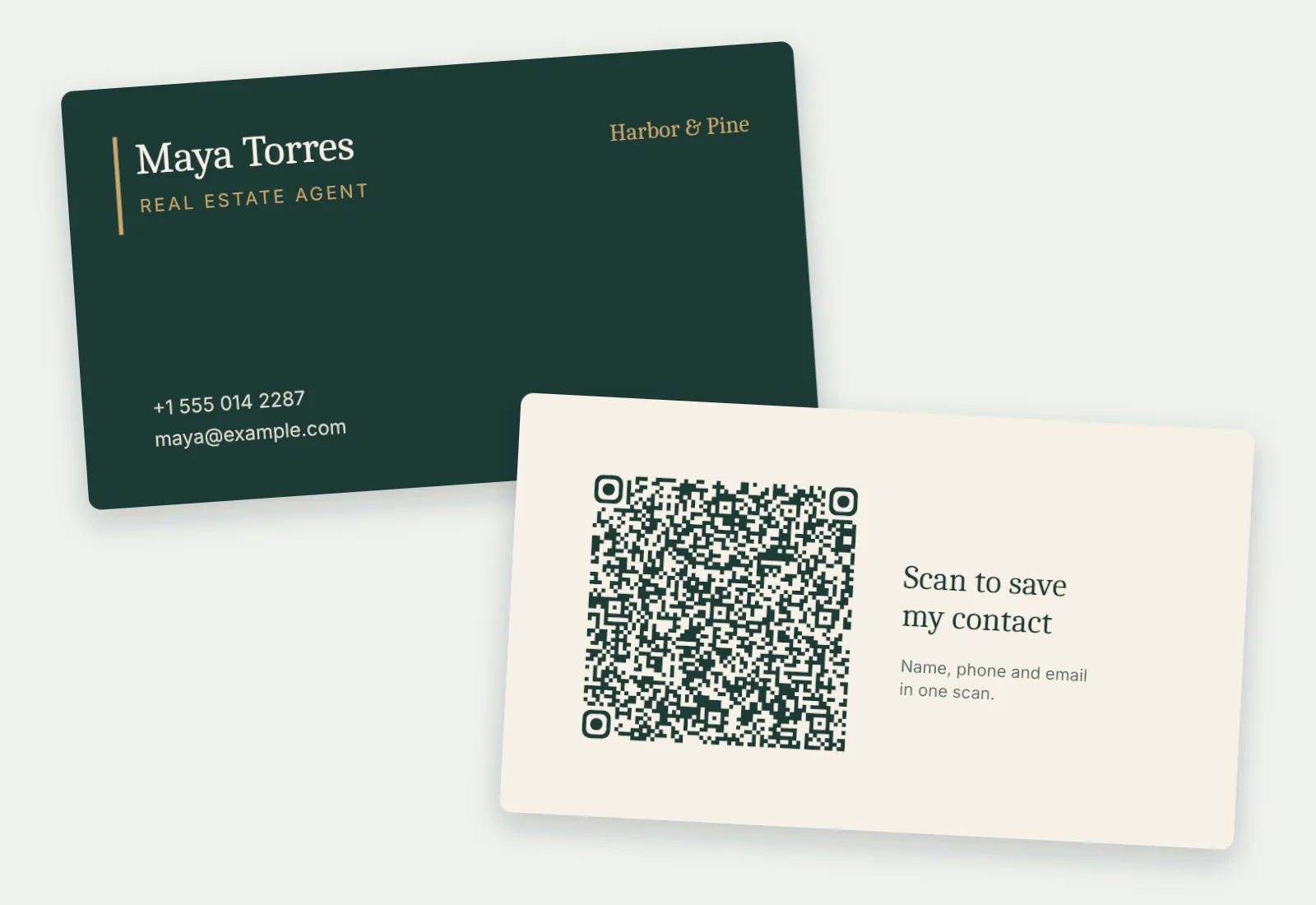
- Realtor. A vCard code on the back saves your name, number and email in one scan, so the card never has to be typed in.
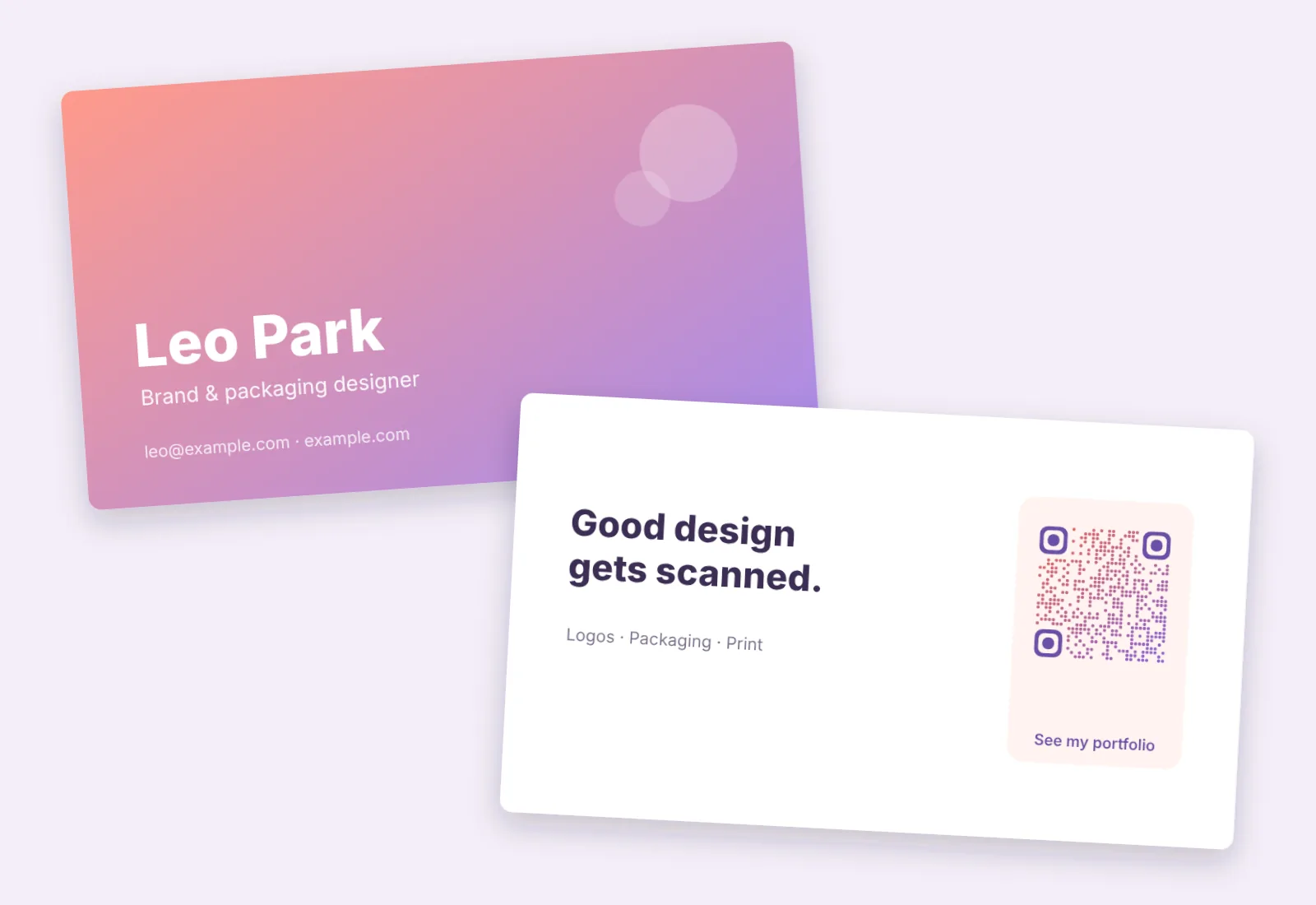
- Designer. A portfolio link in brand colors with your logo in the center, so the code reads as part of the design.
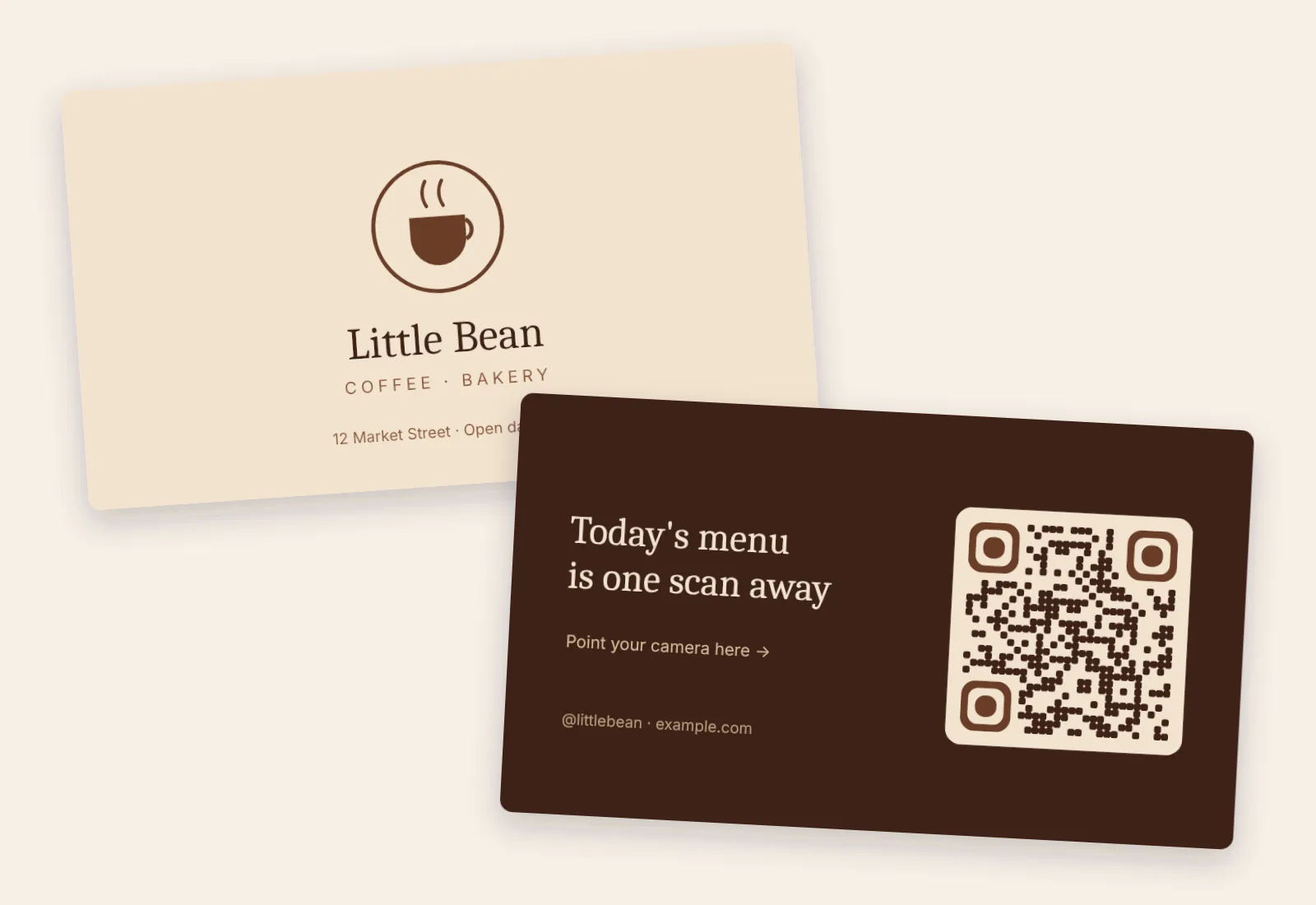
- Restaurant owner or barista. A code to the menu or your Instagram, big enough to scan across a counter.
A card code, branded and crisp
Here's a Capy QR styled for the back of a card — on-brand, high-contrast, exported as sharp SVG with no watermark and no account:
Frequently asked questions
- What is the business card size in pixels?
- A standard US business card (3.5 × 2 in) is 1050 × 600 px at 300 DPI, or 1125 × 675 px with a 0.125 in bleed. A European card (85 × 55 mm) is about 1004 × 650 px at 300 DPI. Use the same pixel dimensions in Photoshop, Canva or Illustrator.
- How do I put a QR code on my business card?
- Choose what it should do — save your contact details or open a digital card — then generate the code and drop it on the back of the card. For a scan-to-save contact, use a vCard QR code; for something you can edit later, use a dynamic URL code pointing at your digital business card. Capy QR builds both, free and with no watermark.
- What's the difference between a vCard QR code and a dynamic one?
- A vCard QR code encodes your name, number, and email directly, so scanning saves the contact even with no internet — but it can never be edited after printing. A dynamic QR points at an online card you can update anytime (new title, new number, added links) without reprinting, and it counts scans. Pick vCard for permanence, dynamic for flexibility.
- How big should a QR code on a business card be?
- At least 2 cm (0.8 in) square, with a clear quiet-zone margin around it. Cards are scanned up close, so this is plenty — but going smaller, or crowding the code against text or the card edge, is the most common reason a card QR fails to scan.
- Can I track scans from my business card QR code?
- Yes, if it's dynamic. Capy QR's free plan shows scans over a rolling 7-day window, so after an event you can see roughly how many people who took a card actually scanned it — useful for knowing whether the card is doing its job. A static vCard code can't be tracked.
- Will a business card QR code have a watermark?
- Not on Capy QR. You can design and export a vCard QR with no signup and no watermark, or a dynamic one with a free account. Download it as SVG (vector), which stays crisp at a small size on a real press, or as a high-resolution PNG if your card tool prefers images.
- Can I make a QR code business card for free?
- Yes. Static vCard and link codes are free on Capy QR, with no signup and no watermark, so you can download a print-ready file and put it on your cards today. A dynamic code with scan tracking needs a free account, and three dynamic codes are included.
The short version: use a vCard code if your details are settled and you want it to work forever with no dependencies, or a dynamiccode if you want to edit the card and see who scans it. Either way, keep it at least 2 cm, give it room to breathe, and export SVG. Capy QR builds both for free, no watermark. Start with the vCard generator or, if you're a solo creator, see QR codes for artists and creators.